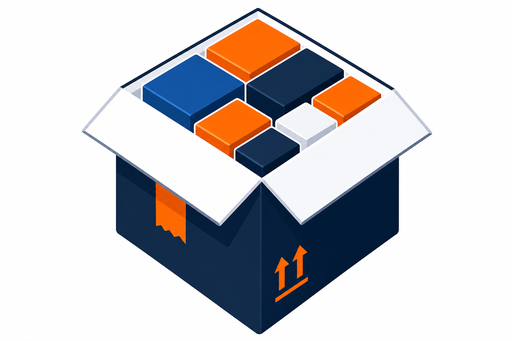
See the correct carton — and exactly how to pack it
Interactive 3D load diagrams for parcel cartons and shipping containers — which outer shipper was chosen, how every item fits inside, and the step-by-step stow sequence your team follows.

Open the live 3D load diagram
Rotate, zoom, and step through the pack sequence — opens the full interactive demo on REF-DEMO-01.
Try REF-DEMO-01 live
Acme Fulfillment — Bathroom refill — rotate the 3D pack, read box sizes, and follow bench steps on real sample data. No account needed.
Ready for your catalog? Start free trial — from $50/month.
Step-by-step instructions on the bench
Rotate, zoom, and verify every item fits
Minimum cube chosen from your shipper mix
See every item in place
The 3D viewer renders each product block inside its outer box with accurate proportions. Switch between outer boxes, toggle inner/outer views, and inspect fill rates per bin.
- WebGL-powered Three.js viewer
- Per-bin tabs for multi-box orders
- Outer / inner / both view modes
- Drag to rotate, scroll to zoom
Step-by-step packing guide
Warehouse staff don't guess — they follow a numbered sequence showing exactly which item goes where. Navigate steps with buttons or keyboard shortcuts.
- Next / previous step controls
- Highlighted active item in 3D view
- Per-step item name and placement
- Auto-cycle through pack options
Packing sequence
Compare and rank plans
The optimizer surfaces multiple valid pack configurations. Compare total cube, box count, and fill rate — then pick the best or cycle through options in the 3D viewer.
- Ranked option strip with ★ best marker
- Cube analysis breakdown panel
- Live search progress during optimization
- Inner vs outer volume breakdown
Compare plans
From diagram to bench
The load diagram connects directly to warehouse tools — packers see the same order on their station display.
Calc & design
Run optimization from the Orders panel — the load diagram opens automatically when results are ready.
Re-run search
Change pack goals (min cube, multi-box only) and re-run without leaving the load design view.
Station push
Send the active order to a packer bench via API or demo kiosk trigger.
ERP API
Pack results and station state available via REST for your WMS or ERP integration.
Prove the pack before dispatch
Run the optimizer on sample orders and open the 3D diagram — free, no signup.